¶ Administrative
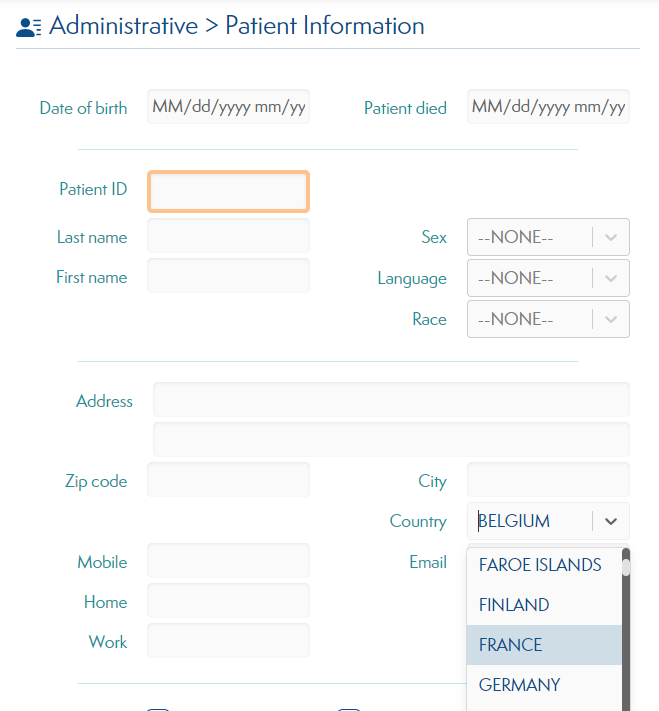
This screen shows the administrative details of a patient.
Some features are worth your attention:
- The field
Patient IDis mandatory. - If you your Hospital is located in the UK, the
Patient IDturns intoNHS Number

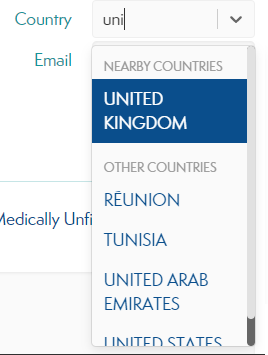
- When adding a patient, the country is preselected to the one of your hospital. Other countries are sorted to allow you to quickly find nearby countries
¶ Clinical content
¶ Clinical assessment
Location in the app: Patient > Clinical.
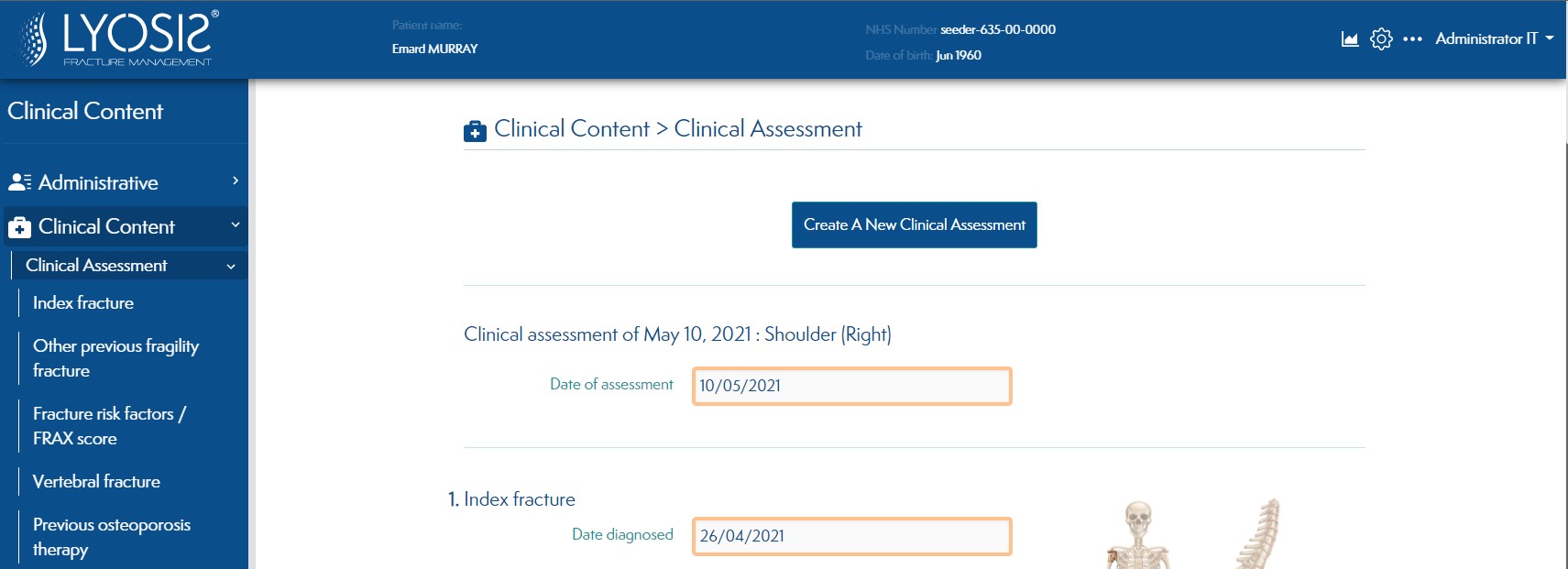
It's possible to add a new clinical assessment to a patient.
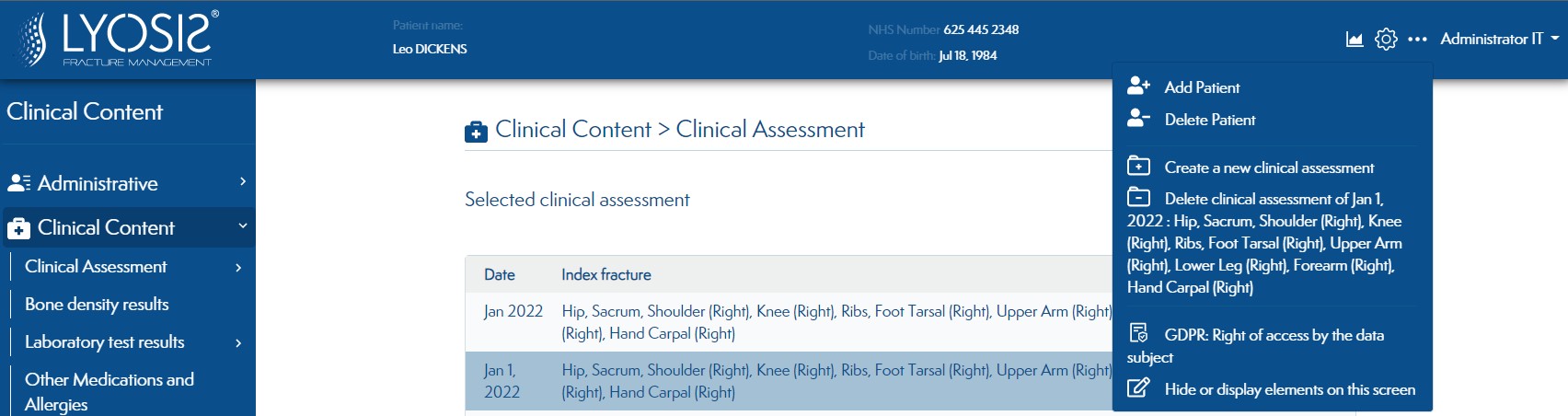
It's possible to delete a clinical assessment of a patient. Click on triple dots icons located in the navigation bar(on the top right)
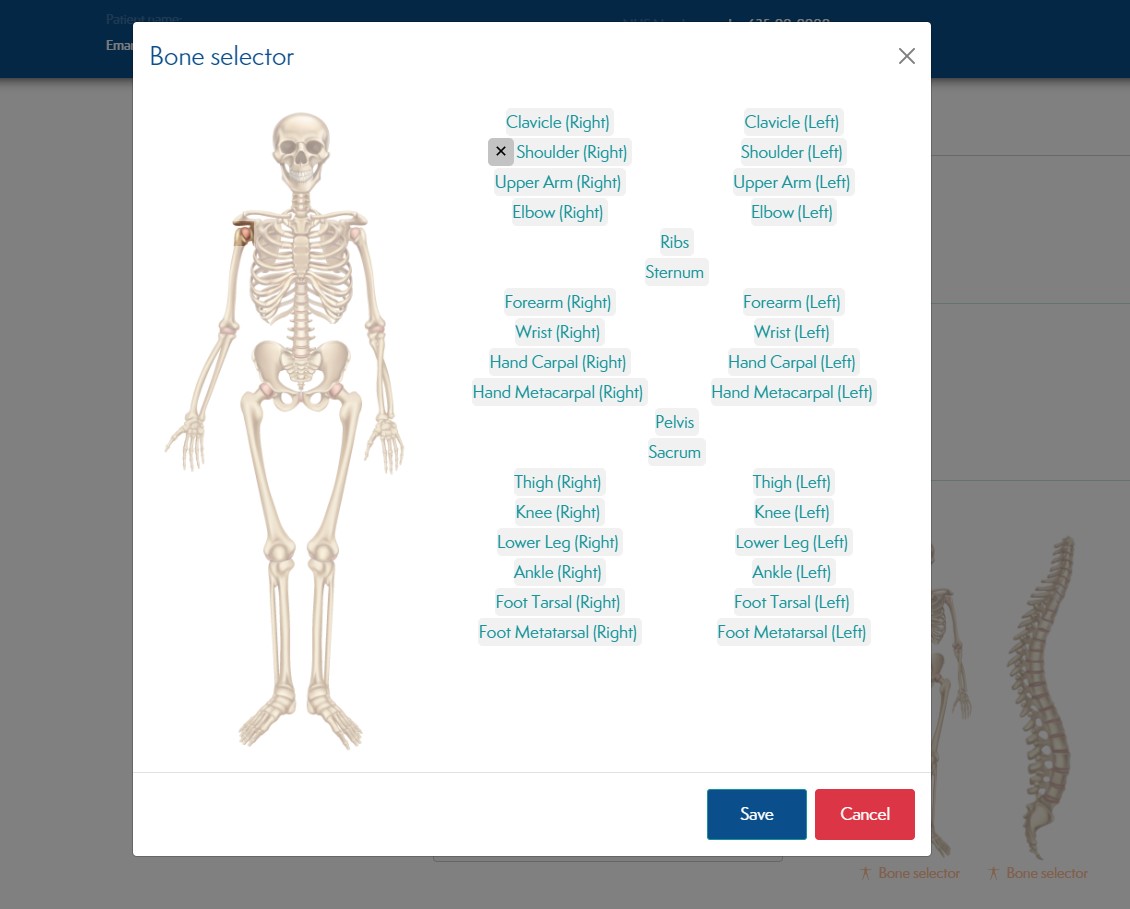
¶ Bone selector
Location in the app: Patient > Clinical.
Click on the bone or spine picture to open a pop up where you can visualy select the fractured bones/areas.
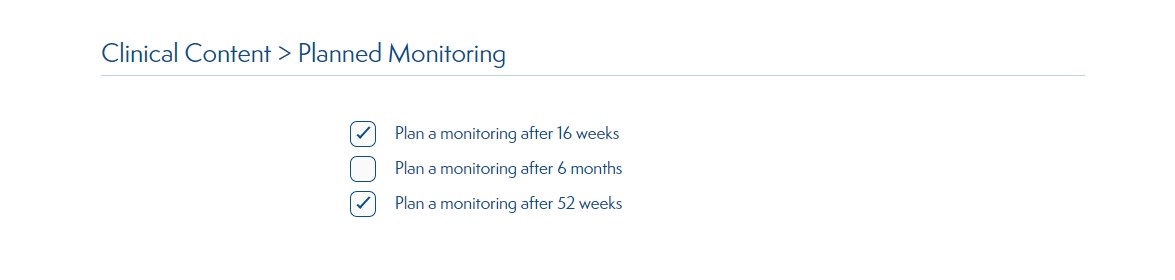
¶ Planned monitorings
Location in the app: Patient > Clinical.
You can set planned monitorings for a patient. (Those planned monitorings can be define in Settings/General Settings/Monitorings)
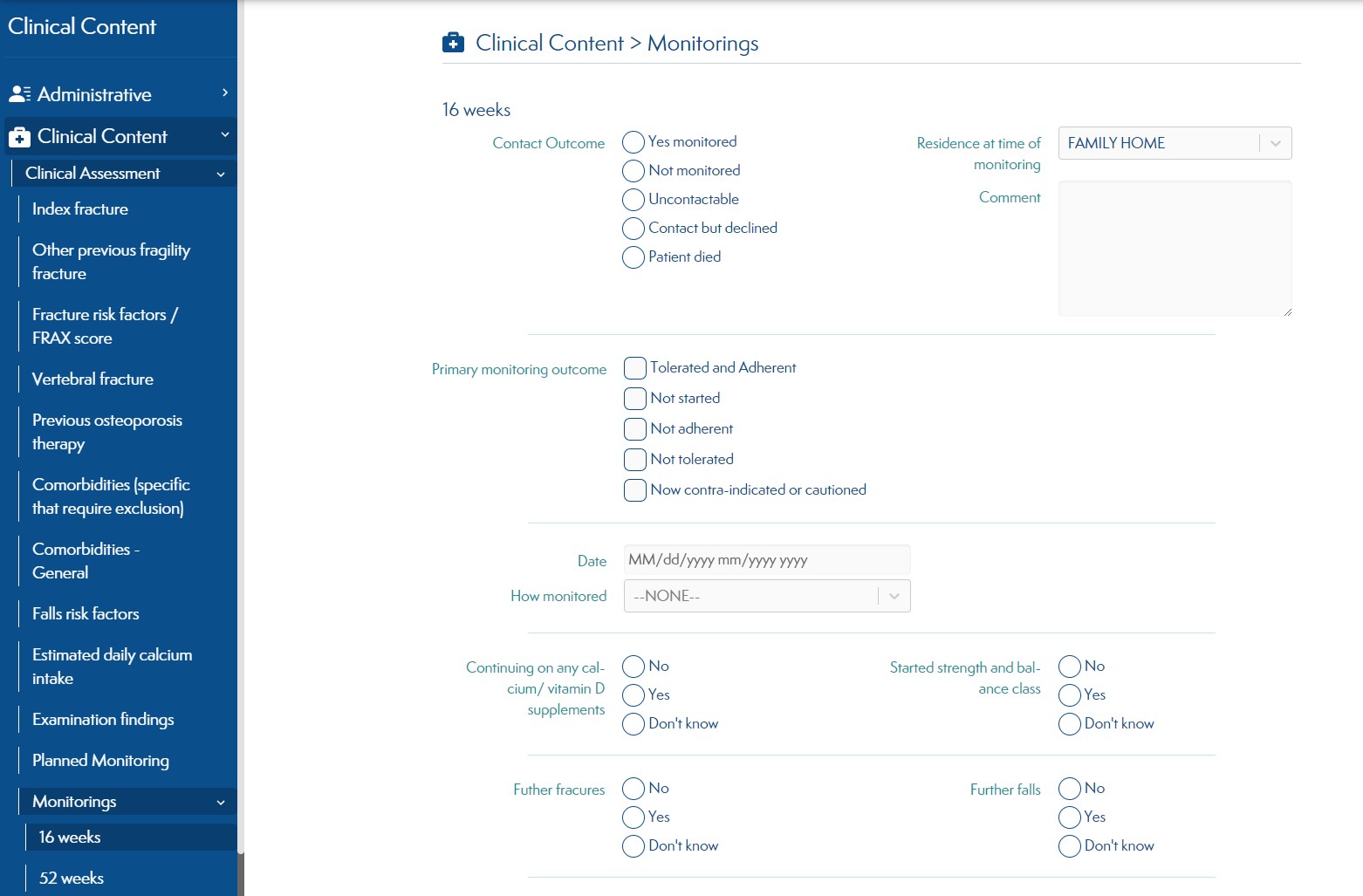
¶ Monitorings
Location in the app: Patient > Clinical.
You can create or update a monitoring for a patient.
¶ Letters
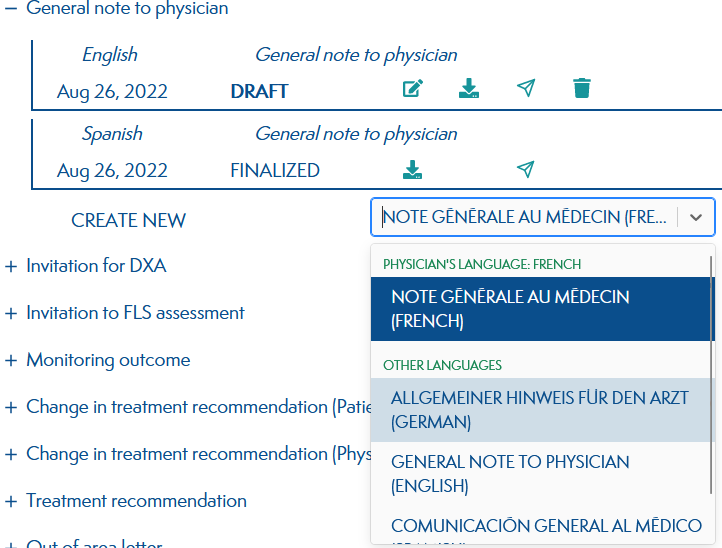
Letters generated inside the application, can also support multiple languages.
¶ Tasks
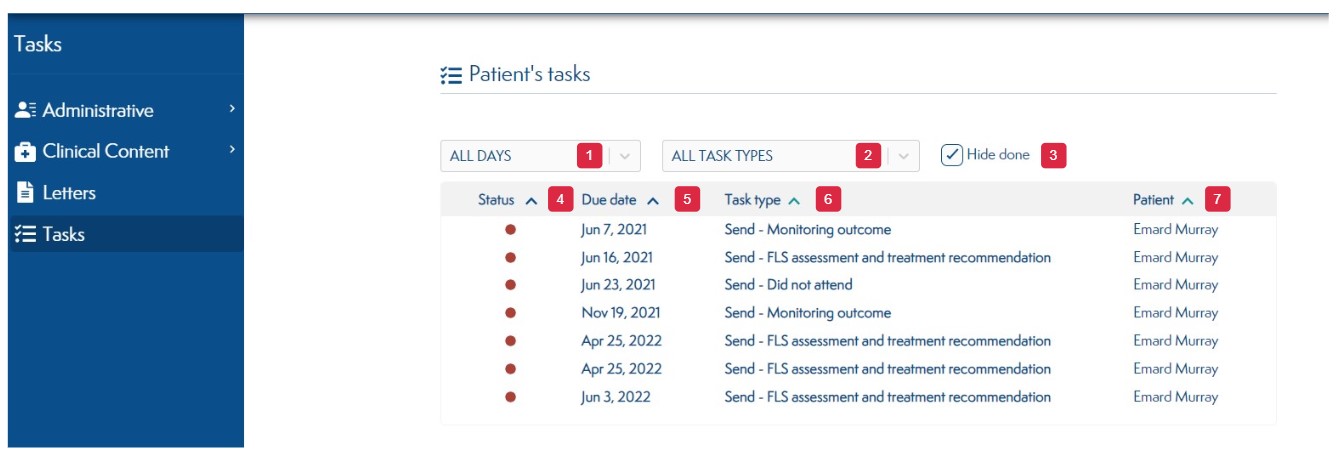
Location in the app: Patient > Tasks.
-
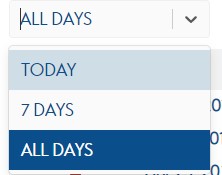
Filter the patient's tasks grid by days.
Example : Select "7 DAYS" to see tasks that need to be completed within 7 days.
Select "TODAY" to see tasks that need to be completed today
 .
. -
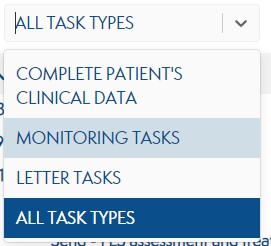
Filter the patient's tasks grid by task types.
Example : Select "LETTER TASKS" to see only the tasks about letters.
-
Show or hide the completed patient's tasks.
Example : Check the box to hide the completed tasks.
Uncheck the box to see the completed tasks. -
Order the patient's tasks by status.
Red : Tasks that have run out of time to be completed.
Blue : Tasks that have 1 to 7 days to be completed.
Green : Tasks that have more than 7 days to be completed. -
Order the patient's tasks by due data.
-
Order the patient's tasks by tasktype.
-
Order the patient's tasks by patient.